Keyboarding in Schools
Classroom Typing Games for Chromebooks
Discover classroom typing games for Chromebooks with a 15-minute rotation plan, game selection table, filter checks, and independent score tracking.
By ProTypingGames ·
Typing games for Chromebooks give students engaging, low-friction practice directly inside the Chrome browser without requiring local software installations or administrative rights. Because Chromebooks rely on lightweight web applications, selecting the right browser-based typing games involves matching specific keyboard mechanics to student skill levels while navigating district content filters, audio constraints, and standard ChromeOS hardware profiles.
Running typing activities smoothly in a Chromebook environment requires teachers to balance instructional goals with technical realities. Students working on compact laptop keyboards need structured routines that build finger positioning, row awareness, and word-level fluency. At the same time, teachers need clear frameworks to track progress without conflating different in-game scoring models with standardized words-per-minute metrics.
Matching classroom typing games to learning goals
Different typing games isolate distinct keyboarding mechanics. A student who struggles with basic letter discovery needs a single-character visual prompt, while a student working on fluid transcription benefits from short-word prompts or continuous typing streams. Selecting the right activity prevents student frustration and keeps classroom practice productive.
| Game | Input format | Core keyboarding skill | In-game scoring metric |
|---|---|---|---|
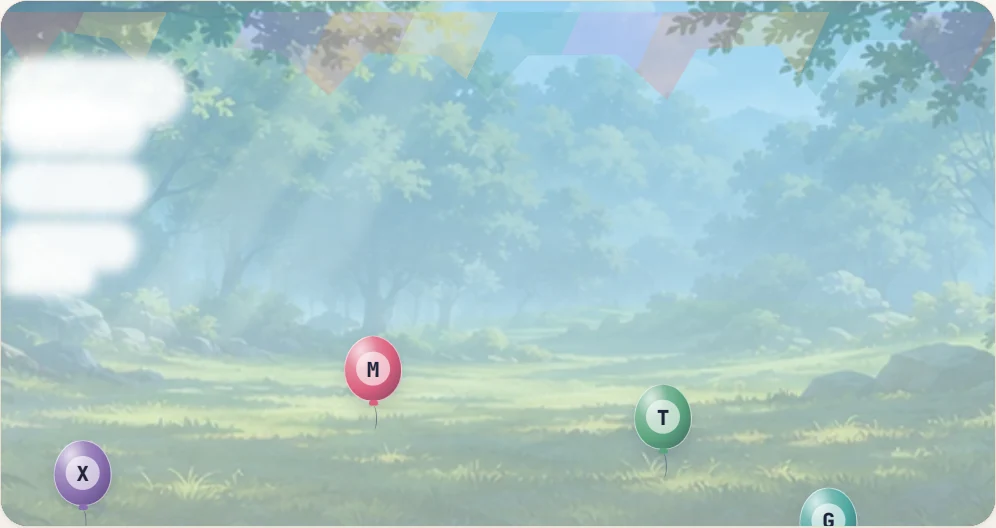
| Balloon Pop | Single letter | Isolated key discovery and visual scanning | Points per popped balloon |
| Key Jump | Single letter | Reaction time and individual key recognition | Platform height or jump points |
| Home Row Hero | Progressive letters | Home row discipline expanding across rows | Accuracy and stage completion |
| Word Rain | Falling short words | Word-level buffering and pacing under descent | Words cleared before floor contact |
| Zen Type | Untimed continuous words | Low-stress transcription and steady rhythm | Characters typed without timer or lives |
Each game isolates a specific operational layer of keyboarding. Single-letter titles like Balloon Pop and Key Jump remove the cognitive load of spelling, letting early learners focus on connecting on-screen characters to physical keys on their Chromebooks.
Progression-based tools like Home Row Hero restrict early stages to the home row keys before introducing reaching movements toward top and bottom rows. For intermediate learners, Word Rain introduces a spatial constraint by dropping words that must be completed before reaching the bottom line, reinforcing complete word chunking under visual movement. When students experience typing anxiety or need untimed practice, Zen Type removes countdown timers and life limits entirely, encouraging relaxed finger placement.
Technical checks for Chromebook classroom deployment
Before launching typing games across a fleet of classroom Chromebooks, complete a brief technical pass across device settings and network policies. Chromebook environments present specific configuration details that can interrupt a lesson if not addressed in advance.
1. Network filtering and domain allowlists
School districts use content filters and firewall policies to regulate web traffic. District firewalls can block gaming subdomains, web socket connections, or external asset delivery networks. Verify that your district technology team has permitted the target typing domain across all student organizational units (OUs).
According to instructional recommendations published by Atlanta Public Schools Instructional Technology, structured keyboarding resources require deliberate classroom integration and routine access to support digital learning goals. Ensuring that your instructional domains pass filter rules in advance prevents broken scripts, missing stylesheets, or blocked interactive pages when thirty students attempt to load a game simultaneously.
2. Audio control and physical volume management
Many typing games contain visual cues accompanied by audio feedback. In a classroom with 25 or more Chromebooks, unexpected sound output creates immediate disruption. Prepare student devices using one of the following methods:
- Provide standard 3.5 mm or USB headphones before the activity starts.
- Instruct students to tap the dedicated ChromeOS mute key (located on the top function row) prior to opening the web browser.
- Use Chrome tab-muting policies if managed at the district administrator level.
3. Display scaling and accessibility configurations
Chromebooks come in various screen sizes, commonly ranging from 11.6 inches to 14 inches. If a device has an unusual display resolution or display zoom setting, browser-rendered game boards might clip or extend beyond the visible viewport.
Standard Chromebook Display Reset Shortcut:
Press Ctrl + Shift + 0 to reset display scaling to default (100%).
Press Ctrl + 0 inside the Chrome browser to reset web zoom to 100%.
Check ChromeOS accessibility settings if a student requires larger text. While zooming can assist students with visual impairments, test whether extreme zoom levels push falling words or single-letter targets outside the active game canvas. Adjust the system display resolution via ChromeOS Settings > Device > Displays to find a balanced scale that preserves both visual accessibility and interface layout.
A structured 15-minute Chromebook rotation model
Classroom typing exercises are most effective when kept brief, structured, and consistent. A 15-minute daily or alternating-day rotation fits smoothly into English language arts blocks, computer lab rotations, or morning advisory periods. This rotation avoids cognitive fatigue while keeping students focused on distinct phases of keyboarding skill development.
+-------------------------------------------------------------+
|              15-MINUTE TYPING ROTATION MODEL                |
+-------------------------------------------------------------+
| Phase 1 (0:00 - 3:00)   : Baseline Warm-Up & Posture Check   |
| Phase 2 (3:00 - 10:00)  : Targeted Skill Game Practice      |
| Phase 3 (10:00 - 13:00) : Timed Assessment or Benchmark     |
| Phase 4 (13:00 - 15:00) : Independent Score Documentation   |
+-------------------------------------------------------------+
Phase 1: Baseline warm-up and posture check (3 minutes)
Begin the rotation by having students adjust their physical workspace. On Chromebooks, students tend to hunch over low-profile screens and rest their wrists on the front edge of the chassis. Require students to sit upright, keep feet flat on the floor, place index fingers on the home row anchor keys (F and J), and elevate their wrists slightly.
Students open a low-intensity warm-up such as Zen Type or complete Alphabet Dash to reorient their hands to the key layout. Timers do not run during this phase; the objective is physical calibration and finger readiness.
Phase 2: Targeted skill game practice (7 minutes)
Assign a specific game that aligns with the current classroom objective. If the class is working on eliminating visual searching, run single-letter games like Key Jump or Balloon Pop. If the focus is sustained word formation, run Word Rain.
During this phase, walk the room to observe student technique rather than their scores. Look for specific mechanical errors:
- Hunting and pecking using only the index fingers.
- Flying pinky fingers that drift away from the home row.
- Looking down at the physical keys instead of keeping eyes on the screen.
- Repeatedly hitting backspace with the middle finger instead of the pinky.
Phase 3: Benchmark typing test (3 minutes)
Transition the class from game mechanics to a formal typing test. Because games use specialized scoring mechanisms, a standardized timed test provides a consistent baseline for tracking raw and net speed over time.
A one-minute or two-minute timed test provides a reliable snapshot. The timer begins on the first accepted keystroke, allowing students to start without timer-induced startle. Standard English timed tests present a steady word stream, while paragraph tests introduce punctuation and capitalized structures.
Phase 4: Independent score documentation (2 minutes)
Have students record their scores in an individual typing log, physical notebook, or digital spreadsheet. Documenting performance immediately after the test ensures accuracy and helps students take ownership of their development. For ideas on structuring friendly group milestones around these records, see our guide on running a classroom typing competition.
Recording and interpreting performance metrics
Tracking progress across Chromebook typing activities requires understanding how web-based typing platforms calculate metrics. Teachers often see disparities between game points, raw typing speed, and net typing speed. Clarifying these differences prevents confusion when assessing student work.
Standard metric definitions
Standardized typing evaluations use standardized implementation units to calculate speed, where one standardized word equals five typed characters, including spaces and punctuation. Results are presented across several distinct values:
- Raw WPM (Words Per Minute): Total retained character units divided by 5, divided by the elapsed time in minutes. This reflects total input volume regardless of uncorrected mistakes.
- Net WPM: Correctly matched character units divided by 5, divided by the elapsed time in minutes. This represents true usable output.
- Correct CPM (Characters Per Minute): The absolute count of correctly typed implementation units produced per minute.
- Accuracy Percentage: The ratio of successful attempts to all scored attempts multiplied by 100, rounded to the nearest whole number.
Accuracy % = ( (Successful Attempts ÷ All Scored Attempts) ) × 100
In standard scoring implementations, fixing a typo does not erase the initial incorrect attempt from the accuracy denominator. Corrected characters that are deleted do not count toward the final retained raw total.
Hypothetical calculation example
Consider a hypothetical student completing a 60-second typing test on a classroom Chromebook. The student produces 150 total keypress implementation units during the test. Out of those 150 attempts, 140 inputs are correct, while 10 inputs represent errors. Five of those errors were backspaced and retyped correctly, leaving 145 retained characters in the final submission, of which 140 match the target text.
- Retained Raw Total: 145 characters
- Raw WPM: $145 \div 5 = 29.0\text{ WPM}$
- Correct Units: 140 characters
- Net WPM: $140 \div 5 = 28.0\text{ WPM}$
- Accuracy: $(140 \div 150) \times 100 = 93.33% \rightarrow 93%$
Avoiding cross-game score comparisons
Do not compare in-game point totals directly to timed test words-per-minute scores. Each game operates on independent scoring logic tailored to its gameplay rules:
- Balloon Pop scores points per popped target based on speed and consecutive hits.
- Word Rain rewards completing falling words before they hit the base line.
- Knockout Typing and Penalty Kick reward clean inputs that trigger discrete animations.
- Home Row Hero tracks stage completions and accuracy thresholds.
Because these games evaluate different inputs under variable time constraints, treat game scores as independent personal-best achievements rather than standardized WPM metrics. Use timed word-stream tests for formal speed logging, and use game scores to measure engagement and mechanical consistency.
Sample classroom tracking sheet format
To help students track their work cleanly during the rotation model, provide a simple recording sheet. Students log their chosen skill game alongside their benchmark test results.
| Date | Warm-Up Game | Practice Game | Game Score | Test Net WPM | Test Accuracy | Technique Goal for Next Session |
|---|---|---|---|---|---|---|
| Oct 12 | Zen Type | Home Row Hero | Stage 4 | 22 WPM | 94% | Keep left hand anchored on home row |
| Oct 14 | Alphabet Dash | Word Rain | 1,450 pts | 24 WPM | 96% | Use right pinky for enter and backspace |
| Oct 16 | Zen Type | Key Jump | 820 pts | 25 WPM | 95% | Look at screen instead of fingers |
| Oct 18 | Alphabet Dash | Balloon Pop | 2,100 pts | 27 WPM | 98% | Maintain steady rhythm on long words |
Reviewing these logs weekly allows you to identify students who are typing quickly but making excessive errors (low accuracy percentages) versus students who type slowly with high accuracy. Students with accuracy below 90% should spend more rotation time in single-letter games or untimed practice to reinforce finger-to-key associations before prioritizing raw speed.
Set up your classroom rotation by testing one skill game and one timed benchmark on your student Chromebooks today, then have students log their starting baseline metrics in their tracking sheets.
Put it into practice
The fastest way to improve is to play. Jump into a free typing game and try it now.
Play free typing games