Typing Drills
How to Type Capital Letters With Both Shift Keys
Learn how to use both Shift keys for fast, ergonomic capitalization. Practice precise press-and-hold hand coordination with our original typing drills.
By ProTypingGames ·
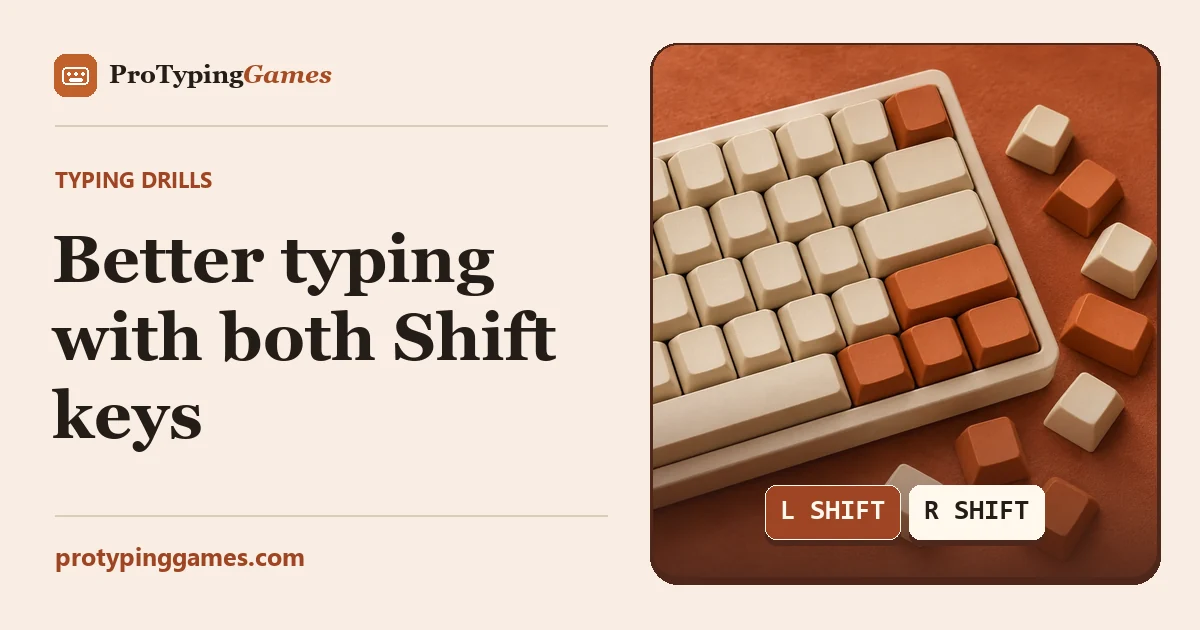
To type capital letters efficiently without breaking your rhythm, press and hold the Shift key using the hand opposite the key you are capitalizing. Using your right pinky on the right Shift key for left-hand letters and your left pinky on the left Shift key for right-hand letters prevents awkward hand twisting, while Caps Lock should be saved for continuous runs of capital letters.
When learning standard touch typing on a QWERTY layout, many people fall into the habit of relying on a single Shift key. Relying solely on the left or right Shift key forces your hand into contorted postures when capitalizing letters on that same side of the keyboard. By adopting two-handed Shift switching, you maintain home row balance, reduce physical strain, and increase your typing speed across paragraphs, proper names, and code snippets.
The mechanics of cross-shift coordination
The core rule of balanced capitalization is simple: opposite hands handle Shift and the target key. Your left hand manages the left side of the main key cluster, while your right hand manages the right side. When a character requires capitalization, the hand that normally types that letter moves to press it, while the opposite hand depresses the corresponding Shift key.
To execute a clean capitalized keystroke:
- Identify the letter to capitalize and determine which hand strikes it.
- Rest the opposite hand’s pinky finger on its adjacent Shift key.
- Press and hold the opposite Shift key slightly before striking the target letter key.
- Strike the target letter key with the appropriate finger.
- Release both keys, returning your hands immediately to the home row positions (A-S-D-F and J-K-L- semicolon key area).
Using the same hand to hold Shift and reach for an adjacent letter strains the tendons in your wrist and forces your entire hand off the home row. For instance, pressing left Shift with your left pinky while trying to strike the “E” or “R” key with your left index or middle finger causes an unnecessary hand stretch. Using the right Shift key for those left-hand letters leaves your left hand relaxed and in position to strike the key accurately.
Left-hand target letters using right Shift
When capitalizing letters located on the left side of the QWERTY keyboard, your right pinky handles the right Shift key. The left-hand letter set includes Q, W, E, R, T, A, S, D, F, G, Z, X, C, V, and B.
To practice this motion, keep your right pinky poised over the right Shift key. Downward pressure on right Shift should begin just an instant before your left finger strikes the target key.
Step-by-step example: Capitalizing “Texas”
- Step 1: Lower your right pinky onto the right Shift key and hold it down.
- Step 2: Strike the “T” key using your left index finger.
- Step 3: Release the right Shift key as your left index finger lifts off “T”.
- Step 4: Type “e”, “x”, “a”, “s” using standard home-row posture without touching either Shift key.
Left-hand capitalization practice drills
Type the following words and proper names, making sure your right pinky depresses the right Shift key for every initial capital letter.
Drill 1: Proper names
- Alice, Frank, Grace, David, Charlie, Sarah, Eve, Quinton, Wendy, Redford, Thomas, Zachary, Xavier, Vance, Beatrice.
Drill 2: Geographic locations
- Texas, Georgia, Colorado, Vermont, Arizona, Washington, Delaware, Florida, California, Alabama, Detroit, Seattle, Boston.
Drill 3: Mixed sentences
- Frank visited Atlanta during April.
- Grace drove through Colorado and Texas.
- David saw Alice near Seattle last Wednesday.
Right-hand target letters using left Shift
When capitalizing letters located on the right side of the QWERTY keyboard, your left pinky handles the left Shift key. The right-hand letter set includes Y, U, I, O, P, H, J, K, L, N, and M.
Using your left pinky to hold left Shift allows your right hand to move freely across the right side of the board. This prevents your right hand from twisting awkwardly when capitalizing keys like “P” or “O”.
Step-by-step example: Capitalizing “Ohio”
- Step 1: Lower your left pinky onto the left Shift key and hold it down.
- Step 2: Strike the “O” key using your right ring finger.
- Step 3: Release the left Shift key as your right ring finger lifts off “O”.
- Step 4: Type “h”, “i”, “o” using standard hand placement.
Right-hand capitalization practice drills
Type these words and phrases using your left pinky on the left Shift key for all initial capital letters.
Drill 1: Proper names
- John, Mary, Helen, Kevin, Laura, Peter, Oliver, Nancy, Ian, Universal, Yellowstone, Oklahoma, Utah, Michigan, Minnesota.
Drill 2: High-frequency terms
- January, July, June, November, October, Monday, Hawaii, Idaho, Japan, London, Madrid, Paris.
Drill 3: Mixed sentences
- Mary and John traveled to Japan in July.
- Kevin left London for Idaho on Monday.
- Oliver noticed Laura near Hawaii last November.
Knowing when to use Caps Lock instead of Shift
While switching between opposite Shift keys is ideal for standard text, proper names, and sentence starts, using Shift for long sequences of capital letters is inefficient. Holding a Shift key down while typing multiple words creates severe hand imbalance and increases error rates.
Use Caps Lock when typing continuous blocks of uppercase text, such as acronyms longer than four letters, SQL queries, database keys, or full-uppercase headlines.
Comparing Shift and Caps Lock usage
- Single capital letter (e.g., “London”): Use left Shift + “L”, then type the rest in lowercase.
- Short acronym (e.g., “NASA” or “HTML”): Use cross-shift toggles or press Caps Lock if comfortable.
- Extended uppercase string (e.g., “SELECT FIRST_NAME FROM USERS”): Press Caps Lock once, type the text using standard finger placement, and press Caps Lock again to turn it off.
When typing numbers or symbols, Caps Lock does not replace the Shift key on standard US layout keyboards. To type symbols like exclamation marks or open parentheses, you must still press and hold the appropriate Shift key regardless of whether Caps Lock is active.
To build fluidity with capital letters surrounded by punctuation marks, you can test your accuracy using our punctuation typing test.
Calculating typing performance metrics
Understanding how your capitalization technique affects your overall score helps you track progress. Platform metrics measure speed and accuracy based on standard character unit calculations.
In timed tests on ProTypingGames, typing metrics are computed using standardized formulas:
- Standard Word Unit: 5 implementation character units (including letters, spaces, and punctuation).
- Raw WPM: Total retained character units divided by 5, divided by total test time in minutes.
- Net WPM: Correctly matched retained character units divided by 5, divided by total test time in minutes.
- Accuracy Percentage: (Successful attempts / Total scored attempts) * 100, rounded to the nearest whole number.
Fixing a typo using the Backspace key does not erase the attempt count for that stroke, which means incorrect initial keypresses lower your overall accuracy percentage even if corrected. Backspace functions across spaces within the currently visible text screen, but you cannot return to previously completed pages.
Worked calculation example
Suppose you complete a 1-minute (1.0 minute) test. During the test:
- You complete 300 total typed character units that remain on the screen at the finish.
- Out of those 300 retained units, 285 character units match the prompt exactly.
- Across the entire session, you made 310 total keystroke attempts (including 10 mistyped attempts that were corrected or uncorrected).
Let’s compute your results step by step:
-
Raw WPM Calculation:
- Retained character units = 300
- Standard words = 300 / 5 = 60 words
- Time = 1.0 minute
- Raw WPM = 60 / 1.0 = 60 Raw WPM
-
Net WPM Calculation:
- Correctly matched units = 285
- Correct standard words = 285 / 5 = 57 words
- Time = 1.0 minute
- Net WPM = 57 / 1.0 = 57 Net WPM
-
Accuracy Percentage Calculation:
- Successful attempts = 300 - 15 uncorrected errors = 285 (or total valid key matches)
- Total attempts made = 310
- Accuracy = (285 / 310) * 100 = 91.935…%
- Rounded Accuracy = 92%
Notice that Net WPM is not calculated by multiplying Raw WPM by accuracy percentage. Net WPM relies directly on the count of correctly matched character units divided by 5 and total time.
If you want to practice longer passages that integrate mixed capitalization and paragraph structures, try our paragraph typing test.
Drills for mixed capitalization and rapid switching
To master switching between left Shift and right Shift, practice exercises that alternate between left-hand and right-hand capital letters in rapid succession.
Drill 1: Alternating capital cities
In this exercise, every word alternates between a left-hand capital letter (using right Shift) and a right-hand capital letter (using left Shift).
- Paris (L) -> London (R) -> Texas (L) -> Ohio (R) -> Boston (L) -> Miami (R) -> Denver (L) -> New York (R) -> Seattle (L) -> Kentucky (R)
Execution breakdown for “Paris London”:
- Hold right Shift with right pinky, press “P” with left pinky. Release right Shift. Type “aris ”.
- Hold left Shift with left pinky, press “L” with right ring finger. Release left Shift. Type “ondon”.
Drill 2: Mixed proper names sentence challenge
Type the following sentences carefully. Focus on clean press-and-release timing so you never hold Shift longer than necessary.
- Beatrice and Kevin met in Denver before flying to London.
- Walter invited Nancy to visit Georgia during October.
- Carlos and Helen studied French in Paris last July.
- Victor left Idaho to join Sarah in California.
- Quentin and Mary saw Utah and Colorado in August.
To review additional patterns for handling tricky symbol layouts alongside shifted characters, read our guide on typing test punctuation drills.
Practical tips for refining your Shift technique
Developing fluid cross-shift habits takes consistent practice. When transitioning from single-Shift typing to two-handed Shift switching, keep these practical tips in mind:
- Keep wrists elevated: Avoid resting your palms heavily on the desk or laptop body. Elevating your wrists gives your pinky fingers the range of motion needed to reach both Shift keys comfortably.
- Press Shift first, release second: Ensure the Shift key is fully depressed before striking the letter key. Releasing Shift too early results in lowercase letters, while holding it too long can accidentally capitalize the following letter.
- Do not stretch your fingers across the keyboard: If you find your hand straining to hit a capital letter, check whether you are using the correct Shift key. If the target letter is on the left side, your left hand should be completely relaxed while your right pinky holds right Shift.
- Focus on rhythm over immediate speed: Speed drops temporarily whenever you rebuild muscle memory. Prioritize hitting the correct Shift key every time, and your typing speed will naturally recover and surpass your previous baseline.
Put these mechanics into practice immediately by opening a timed test or practice module, focusing strictly on using your right pinky for left-side capitals and your left pinky for right-side capitals throughout your session.
Put it into practice
The fastest way to improve is to play. Jump into a free typing game and try it now.
Play free typing games